Terminal UI (TUI)
An interactive terminal interface over the same encrypted vault — browse, search, add, delete, and reveal secrets without leaving your shell.
Launch
concealer tui # or: cer tui
Unlock the same way as the CLI — a CONCEALER_TOKEN in your environment (from unlock / init), or a master-password prompt on the TTY.
Browsing & searching
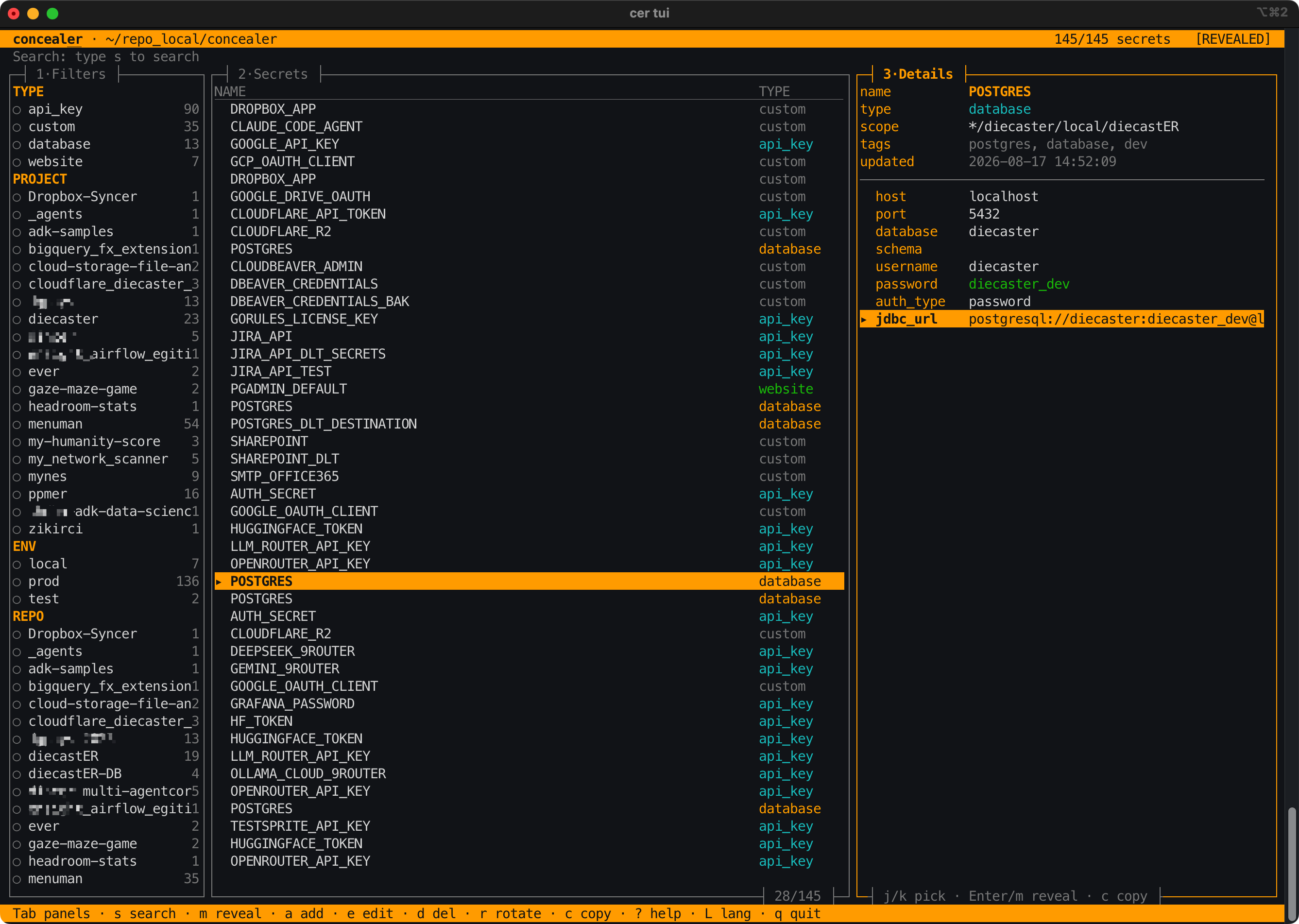
The screen has three panels — 1 · Filters, 2 · Secrets, 3 · Details. Move focus between them, browse, reveal, copy, and edit entirely from the keyboard. Secret fields stay masked until you reveal them — the same record-aware masking rules as everywhere else (see Secret Types).
Keyboard shortcuts
Press ? anytime to see this table in-app. It is bilingual (press L to toggle TR/EN).
Panels & focus
| Keys | Action |
|---|---|
| Tab / Shift+Tab | Cycle focus through the visible panels |
| ← → / h l | Move focus between panels |
| 1 / 2 / 3 | Jump straight to Filters / Secrets / Details |
Navigation
| Keys | Action |
|---|---|
| ↑ ↓ / j k | Move the selection up / down |
| g / G | Jump to top / bottom |
| PgUp / PgDn, Ctrl+U / Ctrl+D | Page up / down |
Search & filters
| Keys | Action |
|---|---|
| s or / | Live search — filters as you type |
| Esc | Clear the search / exit search mode |
| Space / Enter | In the Filters panel: toggle a facet (type, project, env, tenant, repo, tag) |
| x | Clear all active filters |
Reveal & copy
| Keys | Action |
|---|---|
| m | In the Secrets panel: reveal / hide all fields of the selected record |
| ↑ ↓ / j k then Enter / m | In the Details panel: pick a field and reveal just that one |
| c | Copy the value to the clipboard |
| u | Copy the username |
| w | Copy the url |
The clipboard is auto-cleared after 45 seconds (uses pbcopy / xclip / wl-copy). There is no paste — the TUI reads secrets out; to put a value in, use add/edit below.
Edit the vault
| Keys | Action |
|---|---|
| a | Add a new secret (type-aware form) |
| e | Edit the selected secret |
| d | Delete the selected secret (with confirm) |
| r | Rotate its value to a random one |
App
| Keys | Action |
|---|---|
| R | Reload the vault from disk |
| Ctrl+L | Force a redraw |
| L | Toggle language (TR / EN) |
| ? | Show the in-app help |
| q / Ctrl+Q | Quit |
Terminal rendering: concealer draws box characters (
┌│─) in UTF-8 terminals and falls back to ASCII (+-\|) where needed (e.g. VS Code’s integrated terminal). Force it withCONCEALER_TUI_ASCII=1(ASCII) or=0(UTF-8).
Adding & editing
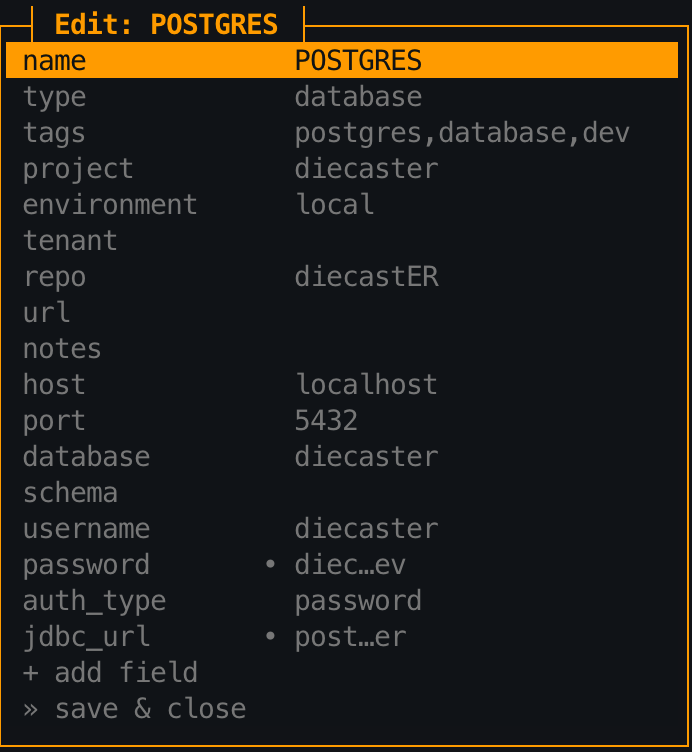
Add and edit use the same type-aware model as the web UI and CLI: pick a type, fill only the fields that make sense for it, and secret fields are stored masked.
Every reveal, create, update, and delete is written to the tamper-evident audit log with source recorded — the TUI is a first-class interface, not a bypass.