Chrome Extension
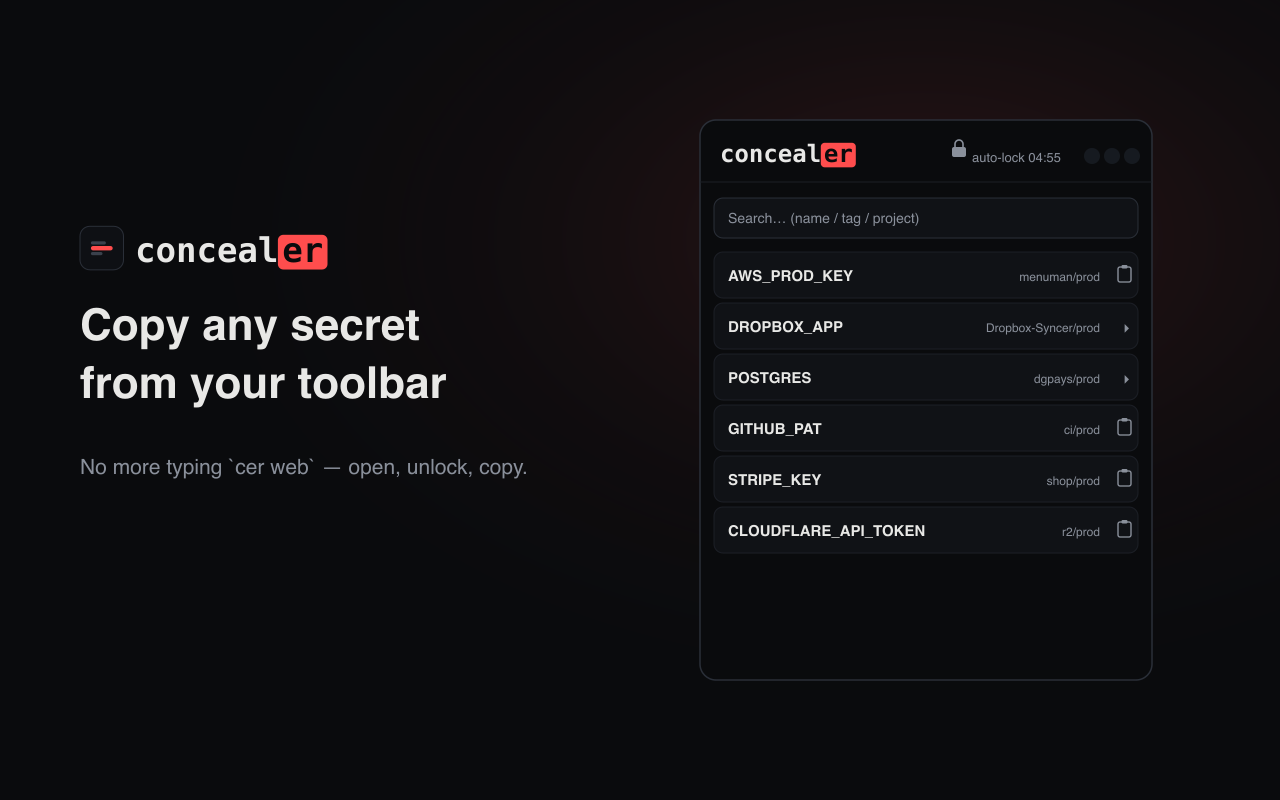
Open your vault and copy secret values straight from the Chrome toolbar — without ever typing cer web. The popup starts the local server on demand and locks itself when idle.
- What it is
- Install & set up
- Using it
- Themes
- Settings
- Developer install
- Privacy & security
- Troubleshooting
What it is
The concealer extension is a thin toolbar UI for your local vault. It talks only to a concealer server on 127.0.0.1 (your own machine) — no cloud, no accounts, no telemetry. Click a secret to copy its value; the clipboard auto-clears after a few seconds.
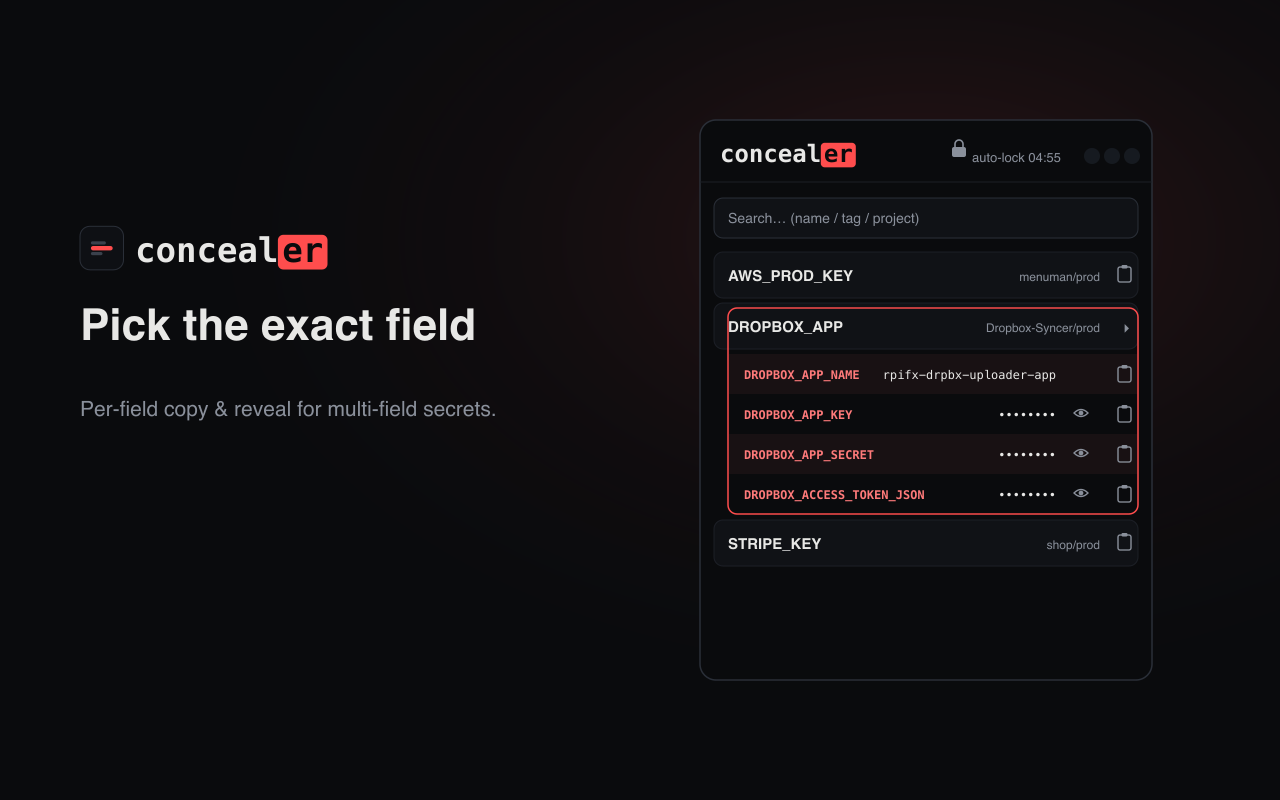
Multi-field secrets (a database’s host/user/password, an OAuth app’s key/secret/token…) expand into child rows so you copy exactly the field you need — and reveal it first if you want to check it.
Install & set up
1. Add to Chrome
➕ Add to Chrome — concealer on the Web Store
Installs like any other extension. (Prefer a local build? See Developer install at the bottom.)
2. Register the native helper
The store can’t register a native host, so run this once per machine so the popup can start your vault. Pick your platform:
Install concealer (if you don’t have it yet):
brew install fxerkan/tap/concealer
Register the native helper (one-time OS setup):
cer chrome-extension
Then click the concealer toolbar icon. The extension shows this setup step until it’s done. Remove it later with cer chrome-extension --uninstall.
Install concealer (if you don’t have it yet):
scoop bucket add fxerkan https://github.com/fxerkan/scoop-bucket
scoop install concealer
Register the native helper (one-time OS setup):
cer chrome-extension
This writes the native-host manifest and the HKCU\…\NativeMessagingHosts registry keys for Chrome / Edge / Chromium. Then click the concealer toolbar icon. See the Windows guide for environment details.
The native helper is built into concealer (
concealer native-host) — there’s no separate program to install.cer chrome-extensionjust registers it with your browser and pins thePATH/vault so Chrome’s minimal launch environment can still findsops/age.
Using it
- Copy — click a single-field secret to copy its value instantly. For multi-field secrets, click to expand, then use the 📋 button on the field you want. 👁 reveals a secret field (auto-hides again after a few seconds).
- Search — filter by name, tag, project, or environment.
- Auto-lock — a countdown in the header locks the popup on its own short timer (separate from, and never longer than, the server’s), and blinks red as it runs out.
- 🎲 Generate — strong passwords / hex / base64url / UUID, copy with one click.
- 🌐 / brand name — open the full web UI in a tab.
- Generate, Web UI, and Settings all work before you unlock.
Themes
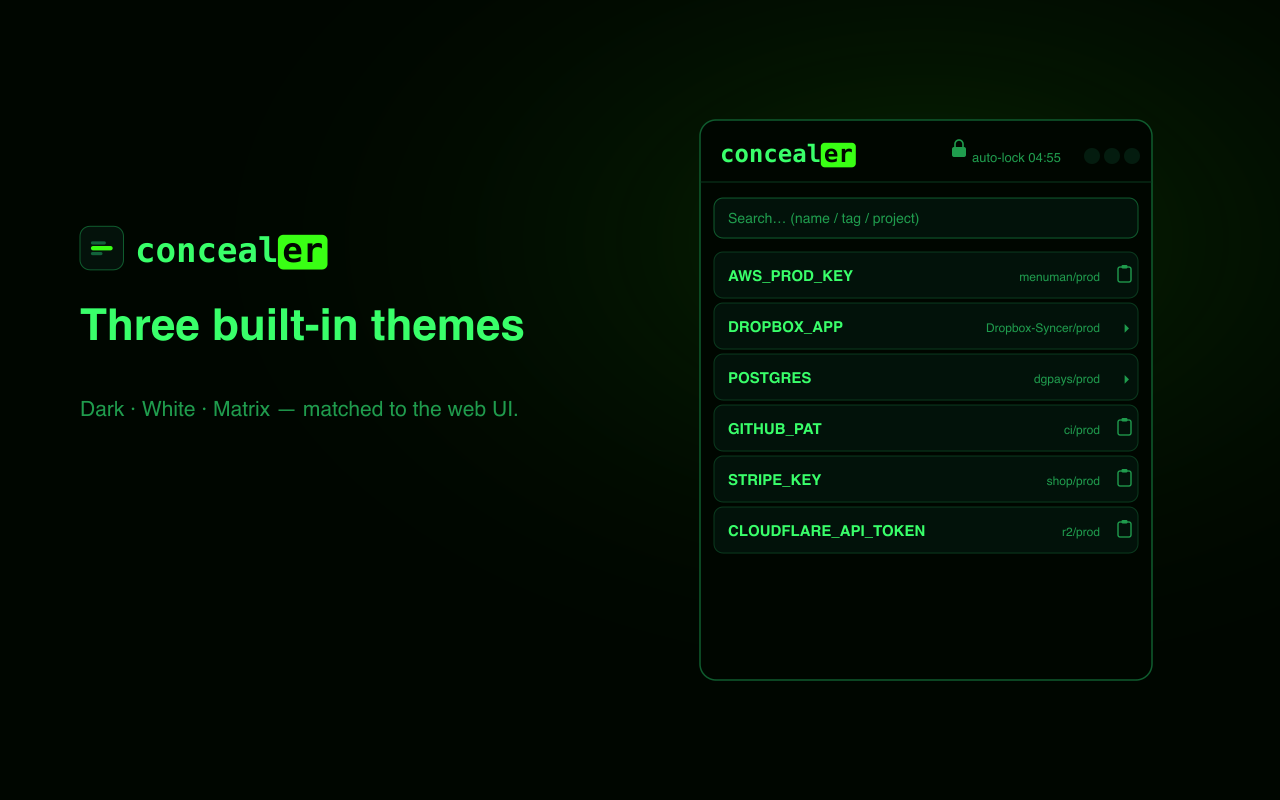
Three built-in themes — Dark, White, Matrix — matching the web UI. Set them in Settings ⚙️ (persisted per browser).
Settings
Open ⚙️ Settings for:
| Setting | Range | Default |
|---|---|---|
| Theme | Dark · White · Matrix | Dark |
| Clipboard auto-clear | 0–600 s | 20 s |
| Extension auto-lock | 10 s – server idle | 60 s |
| Reveal auto-hide | 5–30 s | 10 s |
It also shows the port, the server’s auto-lock, whether the vault is hardened, and a Developer row (see below).
Developer install
Most people should just add it from the Web Store. If you’d rather run a local build, load it unpacked:
git clone https://github.com/fxerkan/concealer.git- Open
chrome://extensions→ enable Developer mode - Load unpacked → select the
extension/folder - Register the native helper for your platform (step 2 above), then click the toolbar icon.
An unpacked build has a different extension ID than the Web Store version. Authorize it for the native host with the command shown in Settings → Developer (it embeds this build’s exact ID):
cer chrome-extension --add-id <extension-id>   # Settings shows the ID for you
cer chrome-extension --list                    # show all authorized IDs
Privacy & security
- The extension talks only to
http://127.0.0.1:8787(your machine). No remote requests, no data collection. See the privacy policy. - Secret values are never logged; the clipboard is wiped after your configured timeout.
- The token that authenticates the popup lives in
chrome.storage.session(memory only, gone when the browser closes). It is sent asX-Concealer-Token; the web UI keeps its HttpOnly cookie.
Troubleshooting
| Symptom | Fix |
|---|---|
| Popup shows the setup card | Run cer chrome-extension, then reopen the popup. |
| “Native host not found” after setup | Fully quit and reopen Chrome (it caches host manifests at startup). |
| Wrong / empty secret list | The server is pointed at a different vault — re-run cer chrome-extension from the shell where your real CONCEALER_HOME is set (or with it unset for the default ~/.concealer). |
cer web says “address already in use” | The extension already started a server — it just opens that one. |
Uninstall the helper any time: cer chrome-extension --uninstall.